Core setup
Segments
Segments are reusable audience groups for your communication system. A segment defines "who" should receive a message, campaign, or notification by combining dynamic rules with individually added manual users. The final audience is the union of both, deduplicated by member.
Navigate to Settings > Segments to manage your segments.
Viewing your segments
The segments page shows each segment as a card. Each card displays:
| Field | Description |
|---|---|
| Segment name | The name you gave the segment. |
| User count | A badge showing how many members currently match. Click it to expand and see the full member list. |
| Rules | Shown as badges summarizing each rule (e.g., "Plan is Gold", "Discipline is not BJJ"). If a segment has more than five rules, the remaining count is shown as a "+N" badge. |
| Description | Optional text describing the segment's purpose. |
Only active members
Segment resolution only includes members who have at least one active membership. Inactive, cancelled, or paused members are not matched by rules.
Creating a segment
Click the Create segment button to open the creation modal. Provide:
- Name -- A recognizable name for the segment (e.g., "All BJJ Adults", "Gold Plan Members").
Then add one or more rules using the rule builder.
The rule builder
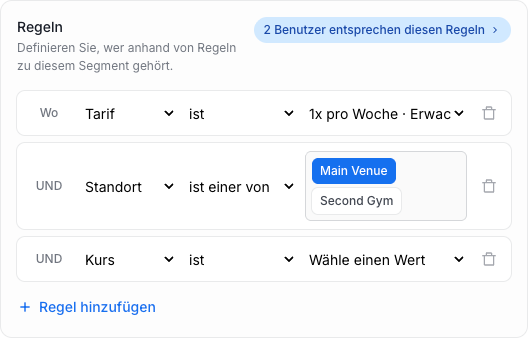
The rule builder lets you define dynamic filters that determine which members belong to the segment. Each rule has three parts:
- Type -- What to filter by (plan, discipline, class, venue, or demographic).
- Operator -- How to compare: "is", "is not", "is one of", or "is not one of".
- Value -- The specific plan, discipline, class, venue, or demographic to match.
Rule types
| Type | Description |
|---|---|
| Plan | Matches members with an active membership on a specific plan. |
| Discipline | Matches members enrolled in a specific discipline. |
| Class | Matches members attending a specific class. |
| Venue | Matches members associated with a specific venue. |
| Demographic | Matches members whose active plan targets a specific demographic (e.g., "Adults", "Kids"). |
Smart visibility
Rule types are hidden automatically when they have only one option. For example, if your club has only one discipline, the discipline filter won't appear in the rule builder. Similarly, if you have a single venue, the venue option is hidden.
Operators
| Operator | Description |
|---|---|
| is | The member must match exactly this value. |
| is not | The member must not match this value. |
| is one of | The member must match any of the selected values. Shows toggle buttons for multi-selection. |
| is not one of | The member must not match any of the selected values. Shows toggle buttons for multi-selection. |
Combining rules
Multiple rules are combined with AND logic -- a member must match all rules to be included. Click Add rule to add additional filters.
Live preview
As you configure rules, the matching user count updates in real time. Click the count badge to expand a list of all matching members, showing their name and email address. This lets you verify your segment targets the right audience before saving.
Editing a segment
Click the Edit button on any segment card to open the edit modal. You can update the segment name and modify, add, or remove rules. The live preview is available during editing as well.
Deleting a segment
Click the Delete button on a segment card. A confirmation dialog will appear before the segment is permanently removed.
Segments in use
If a segment is referenced by communication posts or other features, deleting it may affect those features. Check for dependencies before removing a segment.