Core setup
Create closure times
Closure times let you temporarily cancel all classes during a specific period -- for example, during holidays, club renovations, or seasonal breaks. When you create a closure, Omoplata automatically cancels every affected class occurrence in that date range, and restores them if you later edit or delete the closure.
Before you begin
You need at least one class with time slots configured before closures have any visible effect. If you have not set up classes yet, see Creating classes first.
Step 1: Open the closures page
Navigate to Settings > Closures from the sidebar.
This page shows all your closures in two tabs:
| Tab | Description |
|---|---|
| Upcoming | closures that are scheduled or currently active. |
| Past | closures whose end date has already passed. |
Each closure card displays the name, date range, a status badge (Upcoming, Active, or Past), affected venues, and a preview of cancelled occurrences.
Step 2: Create a new closure
- Click the Create closure button at the top of the page.
- Enter a name for the closure (for example, "Christmas Break" or "Summer Holidays"). This name will appear on cancelled class occurrences so members can see why a class was cancelled.
- Optionally add a description with more details about the closure.
- Select the start date -- the first day classes should be cancelled.
- Select the end date -- the last day classes should be cancelled.
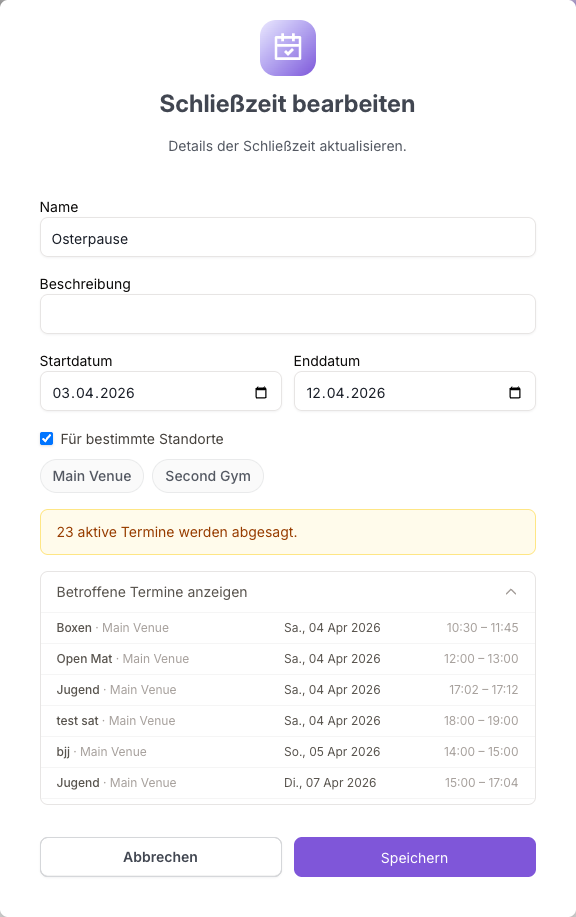
Live preview of affected classes
As you fill in the dates, Omoplata shows a real-time preview of how many class occurrences will be cancelled and lists each affected class with its date and time. Review this list before saving to make sure the closure covers the right period.
Step 3: Choose affected venues (optional)
If your club has multiple venues and the closure only applies to some of them, you can restrict it.
- Check the For specific venues checkbox.
- Select the venues that will be closed during this period.
If you leave this unchecked, the closure applies to all venues.
Single-venue clubs
If your club has only one venue, the venue selection option will not appear. The closure will automatically apply to all classes.
Step 4: Save the closure
- Review the list of affected occurrences shown at the bottom of the form.
- Click Create.
Omoplata will immediately cancel all active class occurrences within the date range (and matching venues, if specified). You will see a confirmation message showing how many occurrences were cancelled.
Editing a closure
To change the dates, name, or venues of an existing closure:
- Go to Settings > Closures.
- Find the closure and click the Edit button.
- Make your changes.
- Omoplata will ask you to confirm that you want to override the existing occurrences. When you confirm, it will restore the previously cancelled occurrences and then cancel the new set based on the updated dates.
Overlapping closures
If two closures overlap in time, editing or deleting one will not accidentally restore occurrences that are still covered by the other closure. Omoplata tracks exactly which occurrences each closure cancelled and handles overlaps correctly.
Deleting a closure
To remove a closure and restore the cancelled classes:
- Go to Settings > Closures.
- Find the closure and click the Delete button.
- Review the list of occurrences that will be restored.
- Confirm the deletion.
Omoplata will restore the class occurrences that this closure cancelled, making them active again. Occurrences that are also covered by another closure or a public holiday will remain cancelled.
Past closures
When you delete a closure whose end date has already passed, occurrences are not restored since those classes already happened.
Public holidays
Omoplata automatically detects public holidays in your region. When class occurrences are generated, any session that falls on a public holiday is marked as cancelled by default. The holiday name is stored on the occurrence so members can see why the class was cancelled (for example, "Christmas Day").
You do not need to create a closure for public holidays -- this happens automatically. However, if your club trains on certain holidays, you can reactivate individual occurrences from the Classes timetable.
Managing individual occurrences
Closures cancel sessions in bulk, but you can also manage occurrences one by one from the Classes timetable. Click on any occurrence to open its detail modal, where you can:
- Cancel a single occurrence -- for example, if a trainer is unavailable on a specific day.
- Reactivate a cancelled occurrence -- for example, if your club decides to train on a public holiday after all.
- Change the trainer for a specific session.
This gives you full control over your schedule at both the bulk level (closures) and the individual session level.
How closures affect your schedule
When a closure is active:
- Class occurrences within the closure period are set to cancelled. They appear as cancelled on the timetable.
- Members cannot check in to cancelled occurrences.
- Members cannot book cancelled occurrences.
- Memberships and billing are not affected -- closures only cancel class occurrences, not financial obligations.
What to do next
- Creating classes -- create and configure your class schedule.
- Track attendance -- learn how check-in and attendance tracking work.
For more about managing individual class occurrences, see Occurrences.