Members
Members
The Members page is the main entry point for managing your club's roster. It gives you a bird's-eye view of every member, their membership status, attendance trends, and current belt rank -- all from a single, searchable list.
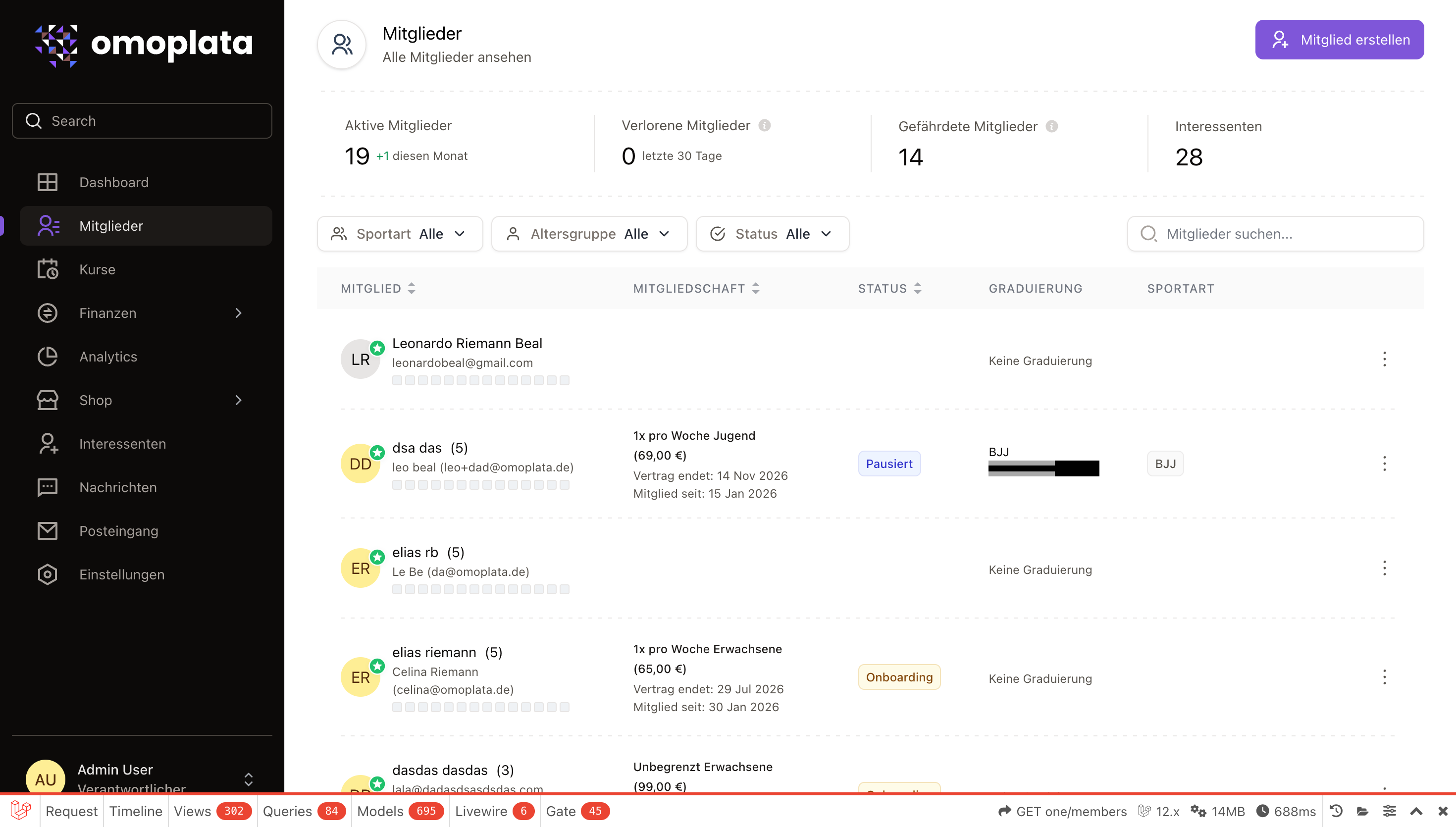
Statistics panel
At the top of the members list, four key metrics give you a quick health check of your club:
| Metric | Meaning |
|---|---|
| Active Members | The total number of members with at least one active membership. The subtext shows how many new members joined this month. |
| Lost Members | Members whose memberships were cancelled in the last 30 days. Use this to spot unusual churn. |
| At-Risk Members | Active members who have not attended a single class in the last 30 days. These members may be losing motivation and could benefit from a personal check-in. |
| Prospects | The number of leads with a "new" status, representing people who have expressed interest but have not yet signed up. |
Searching and filtering
Search
The search bar lets you find members by name or email. Results update as you type. When a search query is active, column sorting is temporarily disabled because results are ranked by relevance.
Filters
Three filter menus sit above the table:
| Filter | Description |
|---|---|
| Discipline | If your club teaches more than one discipline (for example, Brazilian Jiu-Jitsu and Muay Thai), this filter shows only members enrolled in the selected discipline. The filter is hidden when the club has a single discipline. |
| Demographic | Filter by user demographic such as "Adults", "Kids", or "Teens". This corresponds to the demographic assigned to each plan. Hidden when only one demographic exists. |
| Status | The most detailed filter, split into two sections: |
Membership status filters
These match the actual membership statuses stored in the system:
| Status | Description |
|---|---|
| Active | Members with a currently active membership. |
| Paused | Members whose membership is temporarily paused. |
| New | Members created but who have not started onboarding yet. |
| Onboarding started | Members who opened the onboarding flow but did not complete it. |
| Cancelled | Members whose memberships have all been cancelled. |
| Defaulted | Members who have defaulted on payments. |
Special filters
| Filter | Description |
|---|---|
| At risk | Active members with zero class attendance in the last 30 days. |
| Inactive | Members who either have no memberships at all, or whose memberships are all cancelled. |
| Membership ending | Members with a scheduled cancellation date approaching within the next two billing periods. |
| Contract term ending | Members whose initial contract commitment is ending within the next two billing periods, but who have not yet cancelled. These members are about to become month-to-month. |
| Monthly cancellable | Members whose contract period has already passed and who can now cancel on a monthly basis. |
Default view
By default, the list shows all members except those with only cancelled memberships. This keeps cancelled members out of the way while still showing members without a membership (such as newly created members who have not been assigned a plan yet).
The members table
Each row in the table shows:
| Column | Description |
|---|---|
| Member | Name, age (if date of birth is set), email, online status, and profile picture. Tags and a "trainer" badge appear next to the name when applicable. If the member is a minor, the responsible guardian's name and email are displayed below. An attendance heatmap spanning the last three months appears at the bottom of the cell, with green squares indicating training weeks. |
| Membership | The active plan name, demographic, and price. Below the plan name you see the membership start date and either the contract end date or a "monthly cancellable" label. If a cancellation is scheduled, the end date appears in red. |
| Status | A color-coded pill showing the membership status (active, paused, cancelled, etc.). |
| Graduation | When the graduation feature is enabled, the current belt and stripe count for each discipline is shown. This column is hidden if the club does not use graduations. |
| Discipline | Shown only when the club has more than one discipline. |
Sorting
You can sort by member name, membership start date, or status by clicking on the column headers. Sorting toggles between ascending and descending order. Sorting is disabled while a search query is active.
Missing payment method warning
A red credit card icon appears next to a member's name when they have an active membership but no payment method on file. For minor members, this check extends to their responsible guardian. Clicking the icon takes you directly to the payment methods page.
Quick view
Clicking the three-dot menu on any row opens the Quick View drawer on the right side of the screen. This gives you a summary of the member without leaving the list, including their personal details, membership info, and quick actions.
Adding a new member
Click the Create Member button in the top-right corner to open the member creation wizard. The wizard guides you through providing the member's personal details, selecting a plan, and setting up their membership. Sign-up fees associated with the plan are listed during the wizard, and a checkbox lets you skip those charges if needed.
Permission required
Only users with the "manage members" permission can add or modify members. If the button is not visible, check your role assignments.
Exporting members
When the members export feature is enabled in your settings, an Export button appears next to the Create Member button. Clicking it downloads an Excel file containing your full member roster. The export includes all members matching your current filters. While the file is being generated, the button shows a spinner and is disabled so you don't accidentally start the export twice.
Alongside the core details (name, email, phone, gender, date of birth, plan, amount, billing interval, contract duration, status, venues and start date), each row now includes additional information:
| Column | Description |
|---|---|
| Guardians | The full names of all of the member's guardians, comma-separated. |
| Guardian address | The primary guardian's address. For adult members without a guardian, the member's own address is used instead. |
| Account holder and IBAN | Taken from the member's active SEPA direct-debit mandate. For minors without their own mandate, the primary guardian's mandate is used instead. |
| Belt grade | The member's current belt along with its stripe count (when present). |
| Past pauses | Membership pauses that have already ended, with their date range and – when recorded – the reason. |
Bank details depend on permissions
The Account holder and IBAN columns only appear for staff with the "see members' payment methods" permission, and only for the members of the billing entities they are allowed to see. Without that permission, these two columns are omitted entirely.