Communication
Inbox
Every message to your club lands in the Inbox: emails, WhatsApp, Facebook Messenger and Instagram direct messages. Your team sees them in one place, sees who is writing, and replies straight from Omoplata.
Connecting channels
You connect each channel once. After that its messages arrive in the Inbox on their own.
| Channel | How to connect it |
|---|---|
| Connect an email account | |
| Set up WhatsApp | |
| Messenger and Instagram | Settings > Integrations, section Facebook & Instagram, Continue with Facebook. Log in with an account that manages your club's Facebook page. You can connect an Instagram professional account linked to the page at the same time. |
The profile picture shows which channel a message came through. Use Filters to see a single channel.
Views
On the left you choose what to see:
| View | What's in it |
|---|---|
| Unanswered | Conversations nobody has replied to since the last message. Start here. |
| All conversations | Everything that is open. |
| Assigned to me | What someone handed to you. |
| Not recognised | Senders Omoplata hasn't matched to a person yet. |
| Snoozed | What comes back later. |
| Done | Closed conversations. If the person writes again, they reopen on their own. |
Below them are your email folders and your Labels.
Who is writing?
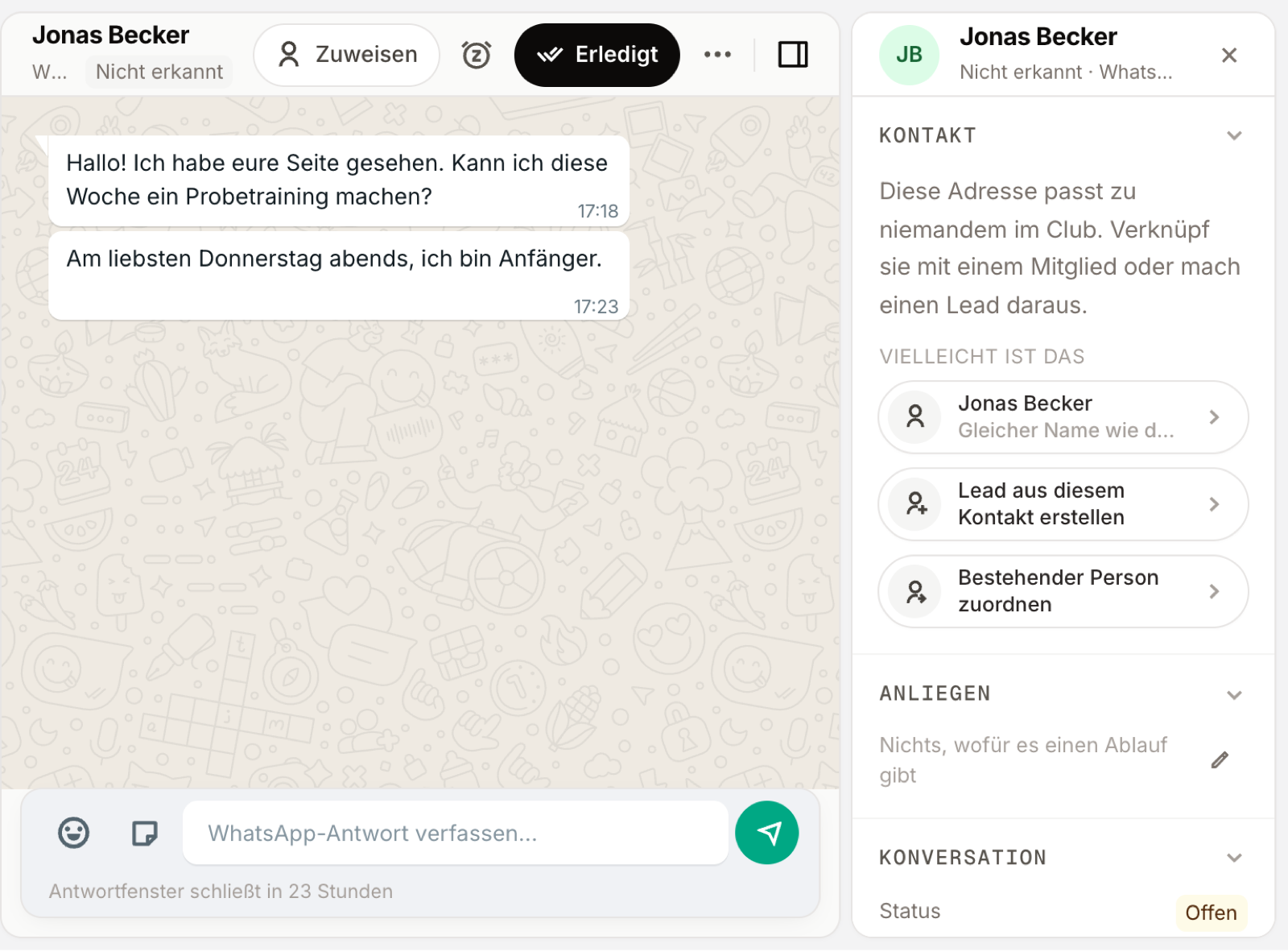
Next to the conversation you see who is writing: member, lead or Not recognised.
- Emails are matched by address: to members, to leads and to parents who signed their child up for a trial class.
- WhatsApp, Messenger and Instagram are not matched automatically. New chats first appear under Not recognised, with the name from the profile.
You match an unknown sender once:
- Match to existing – the person is already a member or lead.
- Create lead from this contact – a new enquiry.
If Omoplata finds someone who might fit, it shows Maybe this is with the reason, e.g. a slightly different email address or the name in the message. Nothing is linked until you click. The match also applies to every later message from that sender.
Replying
You reply in the text field below the conversation, through the same channel the message came in on.
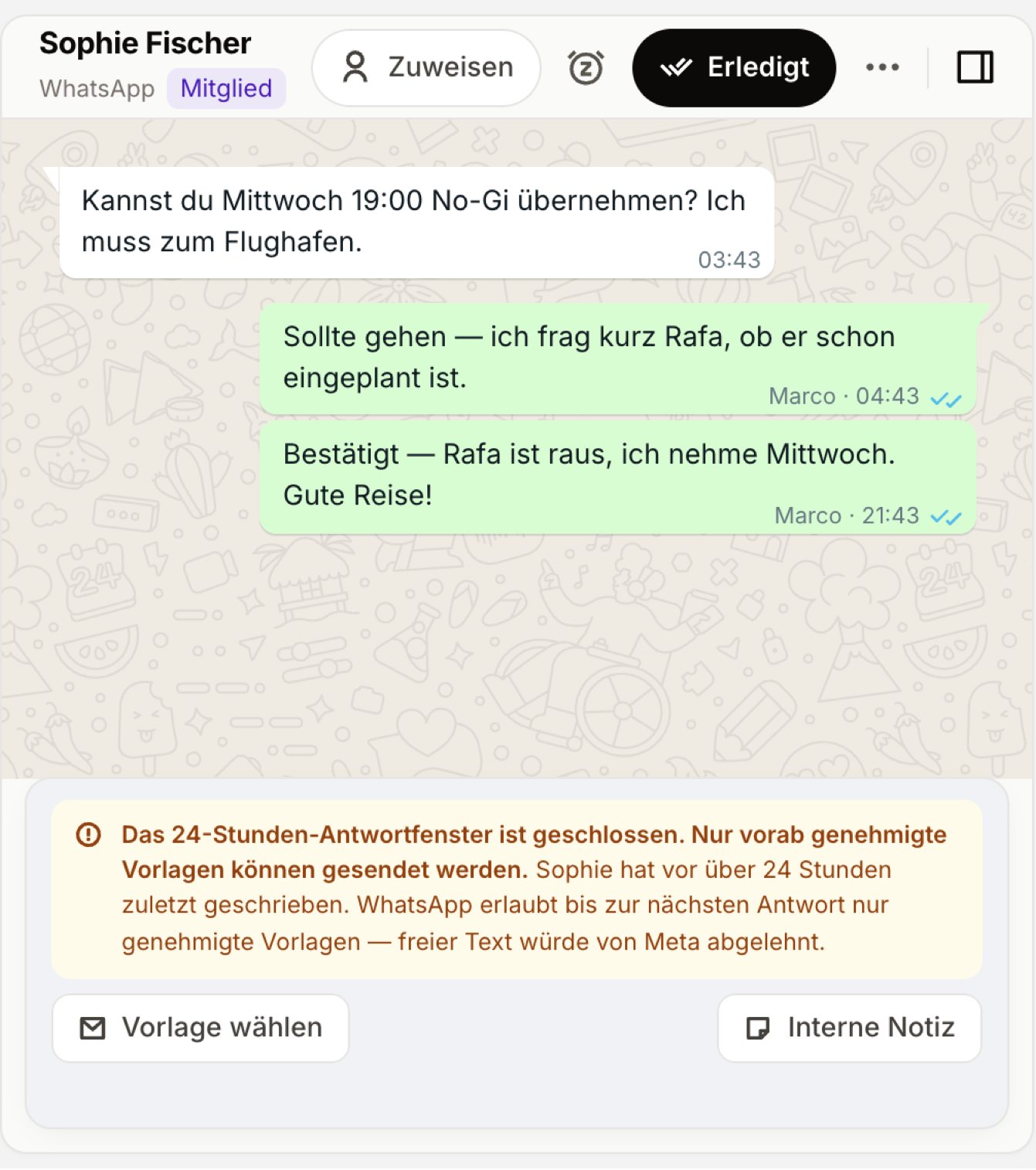
WhatsApp: if someone wrote to you in the last 24 hours, you reply freely. Below the field you see when the reply window closes. Once it is closed, WhatsApp only allows approved templates, and Omoplata shows Choose template. When the person writes again, the window opens again.
Messenger and Instagram: a 24-hour reply window applies here too. There are no templates. Once the window is closed you can only add an internal note until the person writes again.
Every WhatsApp message shows its status: one grey tick = sent, two grey = delivered, two blue = read. If something went wrong it says Not delivered. Hover over it to see why.
Write with AI
If your club has accepted the AI terms, Write with AI drafts a reply and Improve with AI reworks your text. You read it and send it yourself.
Working as a team
- Assign – hand the conversation to a colleague.
- Internal note – only your team sees it, never the person who wrote.
- Snooze – the conversation comes back at the time you pick, e.g. tomorrow morning, or earlier if the person replies.
- Done – if the person writes again, the conversation reopens on its own.
- Labels – your own markers, e.g. “Call back” or “Kids”. They work on conversations and emails.
Starting a new conversation
- Email: click Compose at the top left.
- WhatsApp: click the pen icon (New WhatsApp message). Enter the phone number and choose an approved template. After sending, the chat opens.
You can't start a conversation on Messenger or Instagram. There you reply when someone writes to you.
Related topics
- Set up WhatsApp – connect the number, costs and AI assistant
- Automatic WhatsApp messages – trial class messages by WhatsApp
- Connect an email account – so emails land in the Inbox
- Leads – what happens with new enquiries