Communication
Notification settings
Notification settings let you customize the content of every automated email your club sends. Whether it is a payment failure alert, an onboarding invitation, or a membership reminder, you can tailor each message to match your club's voice and branding.
Navigate to Settings > Notifications to access the template editor.
Turning emails on and off
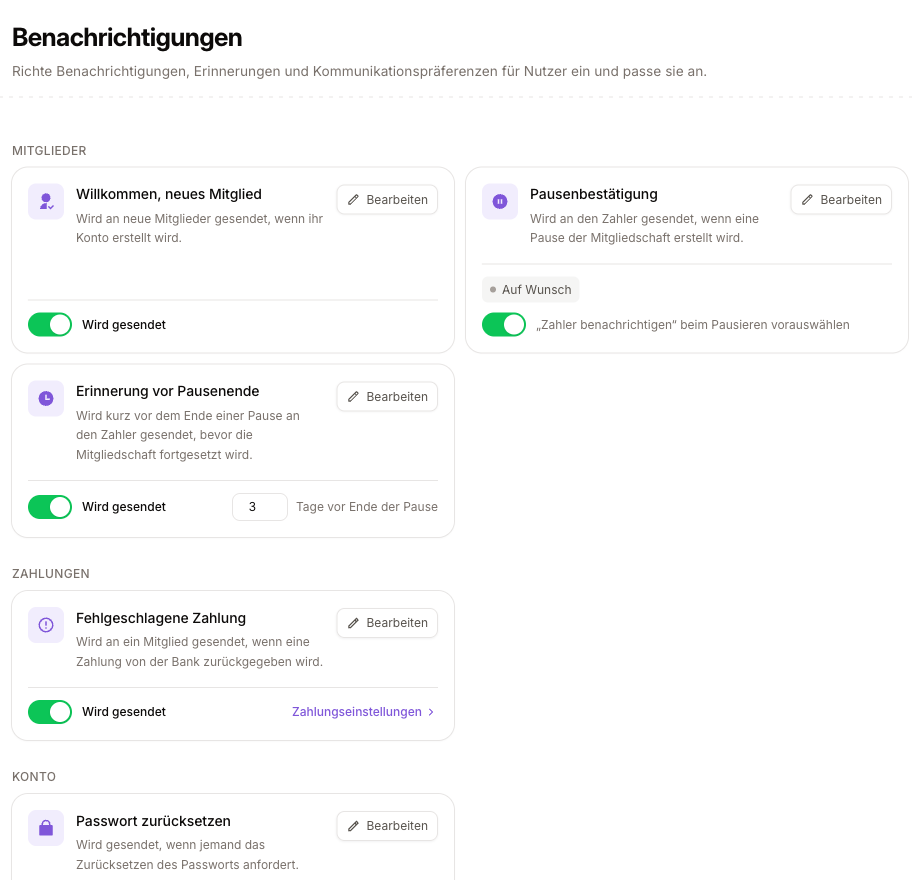
Every email has its own card. The card itself opens the editor (Edit); the bottom left says whether -- and how -- this email goes out at all. There are three cases:
| On the card | Meaning |
|---|---|
| A switch | You decide whether this email is sent automatically. Off means it never goes out. |
| "Always sent" | A transactional email that is part of the action itself -- a password reset, for example. The action does not work without it. |
| "Sent on request" | Not sent automatically, but ticked at the moment of the action -- "notify the payer" when pausing a membership, for instance. The switch on the card only decides whether that tick box starts pre-selected; the decision is made at send time. |
The switch on the card is the same one as on the feature's own settings page -- so the notifications page and, say, the trial or payment settings can never contradict each other.
Extra options
Some cards go beyond the plain on/off question:
- A link to the page that owns the details -- when timings, channels or deadlines are configured elsewhere (trial settings, payment settings), the card links there instead of duplicating the setting.
- A number field on the card itself -- for values that have no page of their own, such as how many days before a pause ends the reminder is sent. The value is clamped to the allowed range when saved, and the field then shows what was actually stored.
Emails that belong together share one card and one switch -- the two trial reminders, for example, are switched with tabs inside the editor.
Permission
Changing switches, options and wording requires the manage notification settings permission. Someone who may only view the page cannot change anything on it.
Template list
The notifications settings page displays a list of all available notification templates. Each entry shows the template's subject line. Click on any template to open it in the editor.
Templates are pre-defined by the system -- you cannot create new notification types, but you can fully customize the content of each existing one.
Editing a template
Clicking a template opens the editor modal with two panels:
Editor panel
Write or modify the notification content using Markdown syntax. You can use:
| Element | Description |
|---|---|
| Headings | Structure your message with sections. |
| Bold and italics | Emphasize important information. |
| Lists | Present steps or bullet points. |
| Links | Direct members to specific pages. |
Preview panel
The right side shows a live preview of how the email will look when received. The preview uses Laravel's Markdown email rendering engine, so what you see closely matches the final output. The preview updates in real time as you edit.
Call-to-action buttons
Templates can include call-to-action (CTA) buttons that direct members to take a specific action. CTAs are added using a placeholder syntax in the template:
[cta type='confirm']
When the notification is sent, each placeholder is replaced with a styled button. The button text and URL are provided by the notification logic. For example:
- A payment failure notification might include a "Update payment method" CTA button.
- An onboarding invitation might include a "Complete your registration" CTA button.
The preview panel shows sample CTA buttons so you can see how they will appear.
Available CTA types
Each notification template supports specific CTA types. The placeholder names are fixed per template -- the editor shows which placeholders are available for the template you are editing.
Common templates
Here are some of the notification templates you can customize:
| Template | Description |
|---|---|
| Direct debit charge failed | Sent when a SEPA payment is returned. Typically includes the amount, a brief explanation, and a CTA to update payment details. |
| Member onboarding invitation | Sent to new members with a link to complete their registration and accept terms. |
| Membership pause ending | Alerts members that their training pause is about to end. |
| Payment reminder | Sent before or after an invoice due date as part of your dunning process. |
| Invoice created | Notifies members when a new invoice is generated. |
Notification channels
While the template editor focuses on email content, notifications can potentially be delivered through multiple channels:
| Channel | Description |
|---|---|
| The primary channel, supported by all templates. | |
| SMS | Available for select templates when SMS is configured. |
| Letter | For clubs that need physical mail delivery for certain communications. |
Each template has a channel indicator showing which delivery method it uses.
Best practices
| Recommendation | Description |
|---|---|
| Keep it concise | Members are more likely to read and act on short, clear messages. |
| Use the club name | Reference your club by name so members immediately know who the email is from. |
| Include a clear CTA | When a template supports a call-to-action button, always include it. Members are more likely to take action when there is a prominent button. |
| Test with the preview | Always check the preview before saving to ensure formatting looks correct. |
Template changes are immediate
When you save a template, the changes take effect immediately. The next notification of that type will use the updated content. There is no staging or approval process, so double-check your changes in the preview before saving.